








Ever wondered whether your emails should sit on a European server or in a Google data‑center? In this article I’ll compare Proton Mail and Gmail to see which one actually protects your inbox – and your privacy.
We’ll go through these 10 topics to directly compare the two email platforms and see who comes out on top:
- Privacy
- Trust and signalling value
- Filtering system
- Storage
- Ease of use
- Search
- Spam
- Layout and theme
- AI Features
- Integrations
And ofcourse I’ll give you my honest verdict in the end. Alright let’s get started.
Privacy
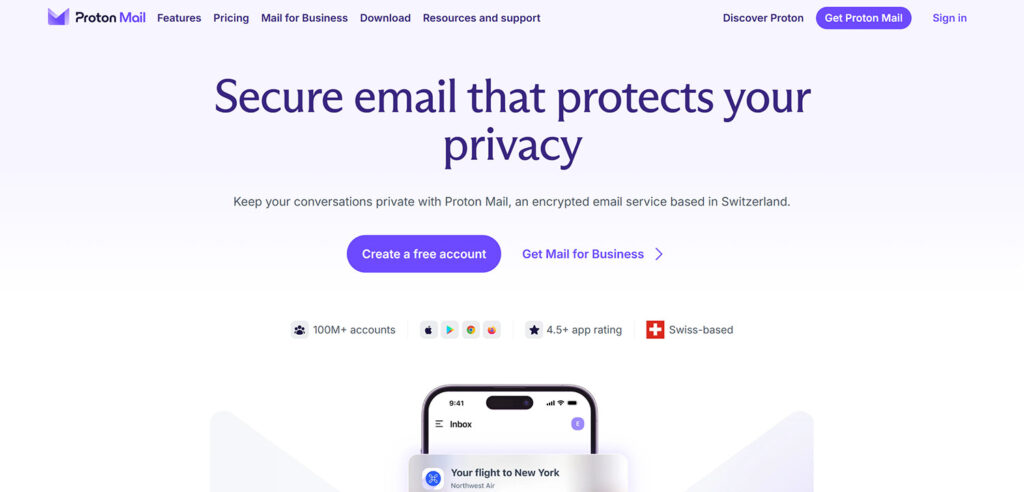
Privacy is where Proton Mail stands out the most. Emails are end-to-end encrypted, so that not even Proton can view them. On the opposite end of the privacy scale you have Gmail which Google claims doesn’t scan your emails for advertising purposes, riiiight.
Proton Mail proves their commitment to security by using open source software that’s regularly audited by third parties. Google, doesn’t.
With Proton Mail you have the much stronger Swiss data protection law compared to the less regulated US laws that gives smaller penalties and with enforcement split among agencies.
Trust and signalling value
Across Europe many companies now list Proton Mail in their compliance documentation because it meets GDPR‑by‑design standards.
Many here in Denmark where I live have started thinking twice before sending important information to a Gmail account, because they know the data will be shared with big tech with no protection of privacy. In fact it’s beginning to be a bad look to still be using Gmail.

The reason is somewhat attributed to the current geopolitical situation, but the trend has been a long time underway from before the current US administration.
Filtering system
In Gmail you can choose to have automatic filtering or set up filtering manually with custom filters and labels. I’ve always felt the automatic filtering system in Gmail was annoying, since I was never 100% certain where to find which email.
In Proton Mail you only have the option to manually setup your filters, since your emails are encrypted, and Proton therefore can’t scan and sort them for you.

So you need to put in the time and effort to set it up yourself, but I don’t mind doing the work to avoid sharing my data with big tech. Plus, the end result of having all my emails perfectly sorted, is very satisfying.
An addition to filters, Proton also offers labels to visually highlight emails of your choice.
Storage
You get 15GB of “free” storage with Gmail, if you don’t count the potential personal data they can harvest. In Proton Mail you only get 1GB for free, after that you have to purchase a Proton Mail Plus plan to get 15GB of storage. In my opinion the price for end-to-end encryption and safeguarding my personal data is fair.
You can get a discount to Proton Mail, while also supporting my work, by using one of my affiliate links:
- 20% off Proton Mail on a monthly plan
- 40% off Proton Mail on a yearly plan
- 30% off Proton Unlimited on a yearly plan
- 25% off Proton Duo or family on a yearly plan
Ease of use
Before switching to Proton Mail I was using both Gmail and Google Workspace. I was generally happy with both Gmail and Google Workspace inboxes for everyday use, however it was quite annoying to have two separate places to check my emails, plus extra email addresses in Google Workspace costs extra for each.

This is much better with Proton Mail, since all my different emails are present inside the same email client. And I also get 10 email addresses and 1 custom domain included in the Plus plan instead of having to pay for each new email address in Google Workspace.
Lastly I can’t speak of Proton Mail without mentioning Proton Pass which you get included both a free and paid plan. You get 10 “Hide-my-email aliases” which hides your real email address when signing up to social media accounts or anywhere else for that matter.
Learn more about Proton Pass in my separate Proton Mail review.
Search
The search field in Proton Mail is quite annoying to use, so in comparison Gmail wins in my opinion.

What happens is, when you click the search bar in Proton Mail, it just activates it – so you can’t just press down and mark any text. You have to click first and then edit the text. It sounds like a small thing, but when you search many times a day it adds up.

The Gmail search field is better since you can mark the search text by clicking and dragging once, so it just feels faster and more responsive to use. And you can search for large emails in Gmail and even input the exact email size, which is great for reducing the size of your inbox.
This is unfortunately not possible with Proton Mail.
Spam
When experiencing Proton Mail’s spam filter for the first time I though Gmail did a much better job at catching spam. However I’ve learned that Proton Mail’s spam filter uses machine learning and therefore become better the longer it’s used.

Proton explains that you can improve the spam filtering by using the “Spam”, “Block” and “Allow” lists, so expect to spend some time checking your spam folder to double check if any emails are wrongfully marked as spam in the beginning.
You find the lists under:
- Settings ➝ Proton Mail ➝ Filters ➝ Spam, block, and allow lists
Currently, after 9 months with Proton Mail I’m experiencing that the spam filter has improved significantly, and that the rate of spam emails that pass to my inbox are much fever than before.
Layout and theme customization
You get a bit more inbox layout customizations in Gmail compared to Proton Mail like for instance “Unread”, “Important” or “Starred” first or showing the reading pane to the right or below the inbox.
In Proton Mail you just get the basic options, like layout in “Columns” or “Row” and the email density set to either “Comfortable” or “Compact”. However, the Proton customizations are plenty for my needs, so we’re far from any dealbreakers here. Oh and last but not least you get “Conversation view” for both inboxes, in Proton you just have to enable it under:
- Settings ➝ Messages and composing ➝ Conversation grouping
The same is true for both mobile apps.
AI features
Proton Mail does not have any AI features built in, however you do get their “Writing assistant” called “Scribe” when upgrading to a Duo, Family or business plan.

Proton Scribe does not train on your inbox data and it’s more of a writing assistant than a fully fledged LLM like Gemini, but it can be useful for drafting emails and making them more or less formal.

In Gmail you can enable “Smart compose” and “Smart reply” which helps you write replies to emails. For full Gemini AI integration though, you have to buy a Google Workspace or Google One AI Premium plan.
Personally I would never let an AI read my emails, since that would be just another way of sharing my data with big tech, whereas for you it might be a vital tool in your everyday life.
Integrations
Gmail is very well integrated with all other Google products like Google Drive, Google Meet, Google Calendar and so on, which is very convenient.

This is not the case with Proton Mail which doesn’t even have Proton Drive available in the mail client, which would have been convenient.
You do however get Proton Pass as mentioned earlier, which email aliases are delivering emails to the Proton Mail inbox.
With Gmail it’s also very easy to accept a meeting invite and add it to your calendar with just a single click.

This is a bit different with Proton Calendar since you can’t click the same button that you’re used to. Instead you get another link called “Attending?” which you have to use instead.
Verdict
All in all I’m very happy to have made the switch to Proton Mail and I’m certain that I won’t be going back to Gmail again.
Yes Proton Mail requires a bit of work, particularly with the filtering system and also spam management if you’re migrating your existing email addresses. But I think Proton Mail is worth the effort considering the increased privacy as well as convenience when using multiple email addresses and custom domains.
So if privacy and EU‑grade data protection are non‑negotiable, Proton Mail is a clear winner.
However, if you rely on AI to compose your emails and need deep Google ecosystem integration then Gmail or Google Workspace will be the right choice for you.
I’m curious which do you prefer? Let me know in the comments below.
Disclaimer: You can help support content creation. If you click some of my links, WP Explainer may get a compensation. I only partner with companies and products that I’d happily recommend to my audience.

Related tutorials
Proton 2026 review: One year after
This one year Proton review (2026) examines the concerns I had when I started vs. the reality I experience today
The best European cloud storage services
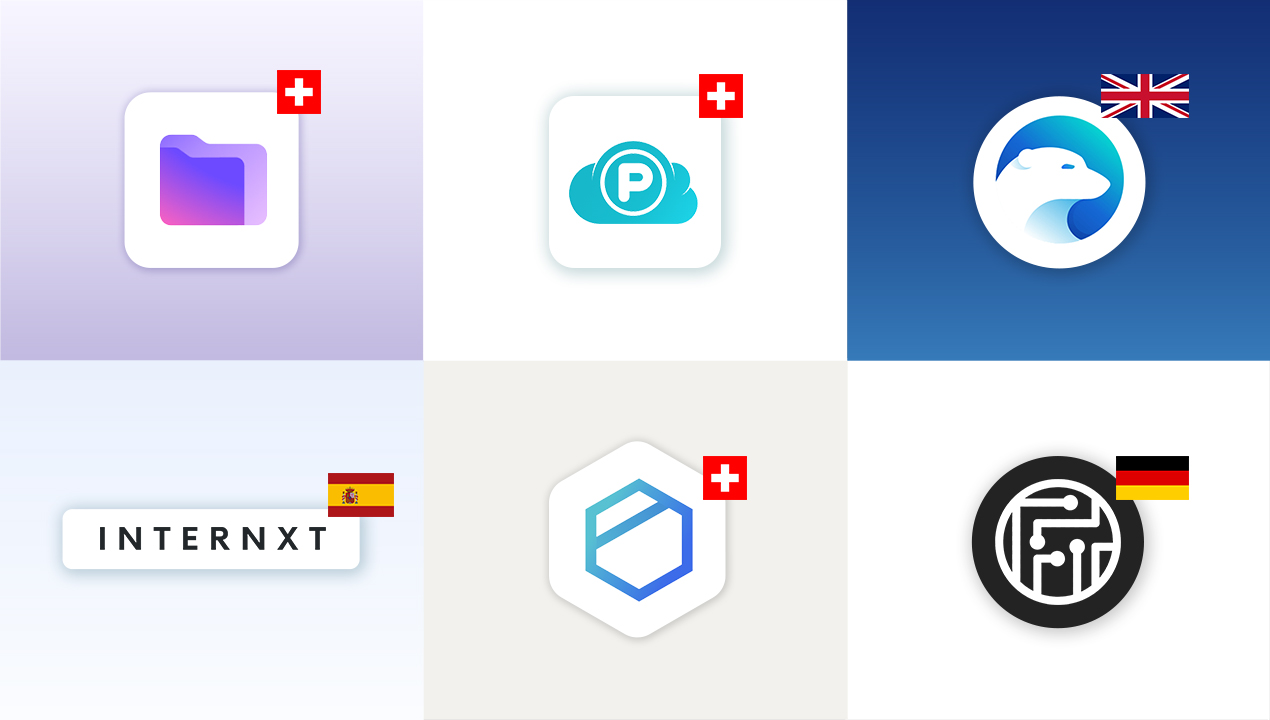
Explore big tech alternatives and leading European cloud storage providers: Proton Drive, pCloud, Internxt, Icedrive, Tresorit, Filen and kDrive
pCloud vs Proton Drive – Swiss cloud storage comparison
A comparison of the two Swiss cloud storage providers pCloud and Proton Drive. How do they stack up against each other in terms of features, privacy and price
Proton Mail custom domain tutorial
In this quick tutorial you will learn to setup your own custom domain in Proton Mail
Proton Mail review – The best private email service?
This review examines the features as well as the benefits and frustrations of switching to Proton Mail

Proton Review: Why and how I switched to Proton – Benefits and frustrations
This review examines the benefits and frustrations of switching to Proton Mail, Pass, VPN and Drive