





Introduction
In this review I will explain the features of Proton Mail, as well as my experiences that has both been good and at times frustrating.
It’s now been 8 months since I made the switch to Proton Mail so now it’s time to reflect and give you my honest opinion about the benefits as well as the biggest frustrations.
Okay let’s get started.
What is Proton
First of all, what is Proton? Proton is a privacy‑focused technology company founded in 2014 whose mission is to provide secure, encrypted services that protect users’ data from surveillance.
Over the years, Proton has expanded its product line beyond secure email to include a range of products such as VPN, Drive, Calendar, Pass and more.

Yes, there has been some uncertainty regarding a new proposed surveillance law in Switzerland, and for that reason Proton is in the midst of moving some of its servers to other locations in Europe such as Germany and Norway. I will keep a close eye on the developments, but for now I trust that Proton will continue to do everything they can to protect their users privacy.
Clearest benefits
I must say the core functionality of sending and receiving emails is really great. I like the interface although it took me some time to find the right layout and theme that helped my eyes adjust to this new inbox. After some testing I ended up settling with the standard dark purple and white theme with a smaller size composer and the emails list shown in a compact format.

I also like that I’m asked if I want to add images as attachments or inline when dragging them into the composer, all while removing metadata, nice.

The keyboard shortcuts are very helpful, I’ve actually never used this many shortcuts before. The ones I find most useful are:
- N to start a new message
- CTRL + Enter to send it
- SHIFT + R to reply to all
- U mark as unread
- R mark as read

Okay now let’s jump to the first big benefit of Proton Mail.
Filtering system
There’s no automated filtering system in Proton Mail, like what you for example find in Gmail. This is because there’s nobody snooping and scanning your emails and therefore no one can sort them for you.

So you have to do everything manually by creating folders and setting up filter rules. Don’t get me wrong, I actually see this as a good thing, since:
- I weigh my privacy over convenience and
- Now I know exactly where to find each email – I definitely didn’t know that using Gmail
Well I say that, but once in a while I do get afraid I missed an important email, and this is where the “All mail” view comes in handy every time.

The filtering system has some quirks though, so you need to get acquainted with it. The most important thing to know is that it filters from top to bottom, so if you change a filter located at the top, then this can affect the filters further down the list.
Proton calls it sequential filtering and I highly suggest you read the documentation before you begin. Find the link in the description.

Labels
I love to have the options to add labels to my emails. You create them the exact same way as you create the folders. Just remember when you’re adding the label, to apply the filter to existing emails. Otherwise they only show up on future emails.
In my own case though, with the folders working so well, I actually haven’t had any need for labels. But they are there, at your convenience.

Newsletter management
There’s a dedicated place to view all newsletters where I can easily unsubscribe and get a view of all emails from each newsletter subscription. Very handy and nothing I’ve seen before. There’s only one downside, it actually creates a custom filter, known as a sieve filter, which I feel clutters up the filter view, but other than that, a great feature.

Price
What about the price? I myself have chosen to go all in with the full suite of Proton products with a Proton Unlimited plan, where I found a great offer for a two year plan.
You can also get a discount to Proton Mail by using one of my affiliate links:
- 20% off Proton Mail on a monthly plan
- 40% off Proton Mail on a yearly plan
- 30% off Proton Unlimited on a yearly plan
- 25% off Proton Duo or family on a yearly plan
I think the price for Proton Mail Plus is fair considering that you also get your own domain included, and not to mention protecting your data from big tech.

Custom domain
When signing up you will choose your Proton email address, which can be either:
- @proton.me or
- @protonmail.com
You also get a shorter @pm.me email address with a Mail Plus account. But, although these email addresses are nice to have, I suggest you hide them behind aliases to protect your inbox from spam. More on hide-my-email aliases later.
You get 1 custom domain and 10 email addresses with a paid Mail Plus plan. I myself has chosen a Proton Unlimited plan which enables 3 custom domains and 15 email addresses which fits my needs better.
To add your own domain you go to “Domain names” under settings and register your domain. Then add the required DNS records like MX, SPF, DKIM and DMARC. When verified you can begin adding your email addresses.

By the way, if you’re interested in the full suite of Proton products, I suggest checking out my full Proton review.
Catch-all emails
Catch-all also requires a Proton Mail Plus plan. If you didn’t know, a catch-all address is meant to catch all emails sent to any non-existing email accounts on your domain. Proton Mail’s catch-all does what it’s supposed to, and enabling it literally takes 5 seconds to complete.
Hide-my-email aliases
You get 10 hide-my-email aliases with both a Free and Mail Plus plan. These are really useful to have, since they protect your real email address from potential spam and misuse. Simply click the 4 boxes next to the logo and log in to Proton Pass. Create your alias and your new login with a strong password. Now you’re ready to replace your personal email address with aliases. So, if you begin receiving spam on one of your aliases, simply delete it and create a new one.

Proton Mail app and bridge
I personally use the Proton Mail web app, because I feel it’s convenient to open up the mail settings in another tab. Then I can make quick settings adjustments, and quickly close the tab afterwards.
However there are installable programs for Windows, MacOS and Linux. I have tested the Proton Mail desktop app, and found that, there’s essentially no differences to the web app, so the choice is more a matter of convenience.
You might also be happy to know that you can keep using your Outlook, Mozilla or Apple Mail client if you prefer that. With Proton Bridge you set up your Proton IMAP and SMTP credentials to connect to your current email client. For extra safety Proton Bridge uses a unique password that is different from your login password and at the same time encrypts your emails.
Proton Mail mobile app
I’m very happy with the mobile app which ofcourse is available for Android and IOS. As standard you get 4 icons at the bottom which are easily customized to your needs. Either click the logo on the left side or longpress the message, click the 3 dots and adjust the tools to your liking. It’s easy to view your folders as well, so all in all a great mobile app.

Migrating to Proton Mail
It’s very easy to migrate to Proton Mail. You can safely forward all emails to Proton Mail without revealing your new email address to your existing email service. And with Proton’s Easy switch you can choose to transfer all your emails, so that your entire email history resides inside Proton Mail.

Before doing that though, it’s a good idea to use your current email clients cleanup functionality to delete all emails with large attachments to avoid using too much of your Proton storage.

If you’re migrating from for example Gmail, Proton will forward all your Gmail emails while, at the same time, removing all link trackers.
Frustrations with Proton Mail
Storage
The storage capacity of Proton Mail is limited to 1GB for a free plan after you’ve completed two assignments:
- Setup forwarding from Gmail
- Install and log into the mobile app
For the paid Plus plan you get 15GB of storage. For some, this amount of storage will quickly become claustrophobic, since emails, and in particular attachments, take up a lot of space.
A quick fix could be using email cleaning services, but granting access to your inbox to third parties defeats the whole purpose of having a private email client in the first place. So how do you avoid reaching the storage limit and having to upgrade each time?
There are a few ways to go about it, the first is enable auto-deletion of unwanted messages. This is easily done by going to:
Settings → Messages and composing → Auto-delete unwanted messages
This deletes all emails in the trash and spam folders after 30 days.
Now what about attachments? There’s no way of searching for emails with attachments, BUT you can make a filter and add all emails with attachments to a specific folder, however that’s not very useful either since a logo from a signature also gets caught by this filter. AND there’s unfortunately no way of deleting the attachments from your emails. So you have no other way than to delete the entire message.

I wish Proton had made an inbuilt tool to clean up my inbox, and particularly a way of deleting attachments while keeping my messages, so I urge Proton to add this functionality in the future.
Spam
Handing spam in Proton Mail is an annoying time killer. A lot of spam has to be dealt with manually, which is quite frustrating, especially on my public company email addresses.
I’ve checked Protons documentation about this, for example a page called How to avoid receiving spam but it pretty much only suggests using aliases and doesn’t deal with incoming spam for my public emails.
Yes I can make some custom filters on words like “inherited millions” or “interested in investing” but that seems like an uphill battle.
To be fair I see that Proton Mail actually deals with some of my spam, and it gives a big red notice on phishing schemes which is useful. But I still need to handle a lot of spam myself.

Is this the downside of not having a big corp AI’s scanning my emails? I guess privacy comes at a price and that price is spam.
Search bar
A smaller and more personal annoyance is the search bar. First of all, when you click the search bar in Proton Mail it just activates it – so you can’t just press down and mark your search text. You have to click first and then click one more time to mark the text. It sounds like a small thing, but when you’re searching many times a day it adds up.

To be fair there is a keyboard shortcut, so pressing dash will activate the search bar, but I doubt I’ll ever get used to that.
Also you have to check this button to include message content in your search, which is quite essential for a proper search to function. Bear in mind, that if you have Proton Mail installed on multiple computers, you have to click the button on each of them.
Verdict
So is Proton Mail the best private email provider? Well, I’ll have to test more alternatives to give you a proper answer. But despite a few grievances I can honestly say that I’m very happy about Proton Mail and I have no intention of switching away. It easily outcompetes Gmail which I’ve spent most of my time with before. So, Proton Mail is an easy recommendation.
Disclaimer: You can help support content creation. If you click some of my links, WP Explainer may get a compensation. I only partner with companies and products that I’d happily recommend to my audience.

Related tutorials
Proton 2026 review: One year after
This one year Proton review (2026) examines the concerns I had when I started vs. the reality I experience today
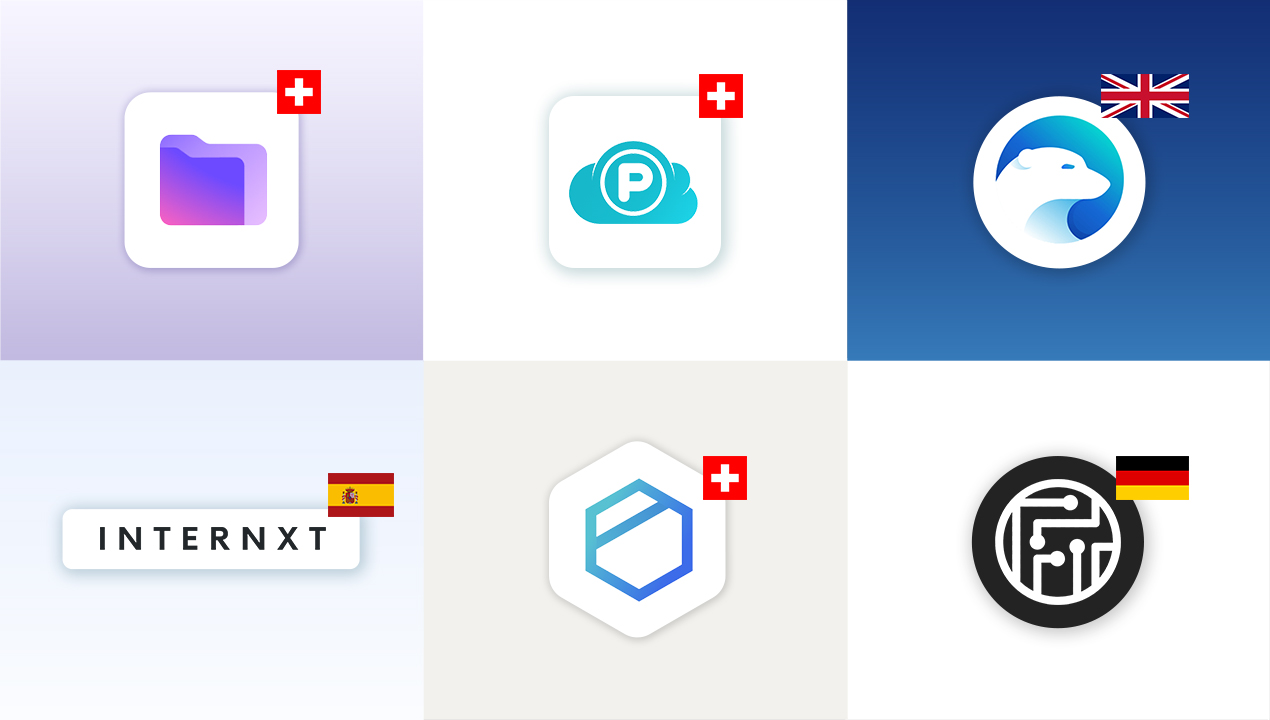
The best European cloud storage services
Explore big tech alternatives and leading European cloud storage providers: Proton Drive, pCloud, Internxt, Icedrive, Tresorit, Filen and kDrive
pCloud vs Proton Drive – Swiss cloud storage comparison
A comparison of the two Swiss cloud storage providers pCloud and Proton Drive. How do they stack up against each other in terms of features, privacy and price
Proton Mail vs Gmail comparison – A matter of prioritization
A side-by-side comparison of the strengths and weaknesses of the two email clients: Proton Mail and Gmail
Proton Mail custom domain tutorial
In this quick tutorial you will learn to setup your own custom domain in Proton Mail

Proton Review: Why and how I switched to Proton – Benefits and frustrations
This review examines the benefits and frustrations of switching to Proton Mail, Pass, VPN and Drive