









Getting your email past spam filters and into your users inboxes is becoming increasingly difficult. Whether you own a website, an app or custom software – you need to reliably send emails without worrying about delivery.
Mailgun is a user-friendly and reliable email delivery service that I use for all my client’s websites, as well as my own.

It’s owner company Sinch is headquartered in Stockholm, Sweden, but bear in mind that the operations of Mailgun is located in San Antonio, Texas.
When setting up your mail delivery you are presented with the option to choose a region, either North America or Europe. Mailgun promises that message data is tied to your region of choice and never leaves the region that it is processed by.

In this quick step-by-step tutorial I will go through how to setup Mailgun in two ways. First I’ll connect Mailgun to a WordPress website using an API key. Secondly I’ll show you how to connect to Mailgun using SMTP credentials.
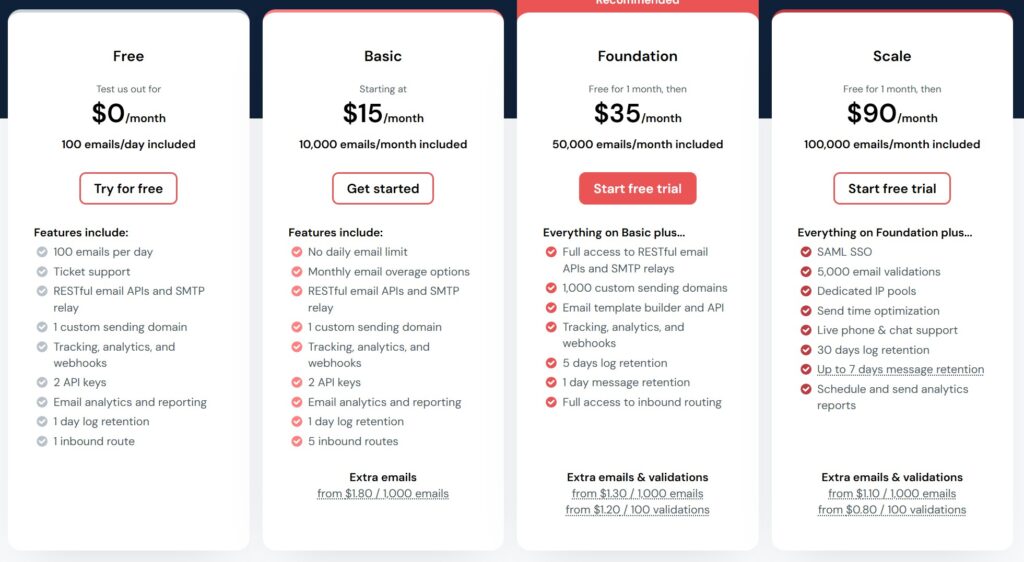
You can get a long way with the free plan which sends up to 100 mails each day however if you need more domains, you will either have to purchase a subscription or setup a separate free account.
I’ll go through my most efficient setup which only takes about 10 minutes. Okay let’s get started.
Setting up your domain
Bear in mind that if you click “Start for free” you actually start a trial period with a paid plan. Instead click on Pricing and select “Try for free”. Next fill out your information and verify your email address.
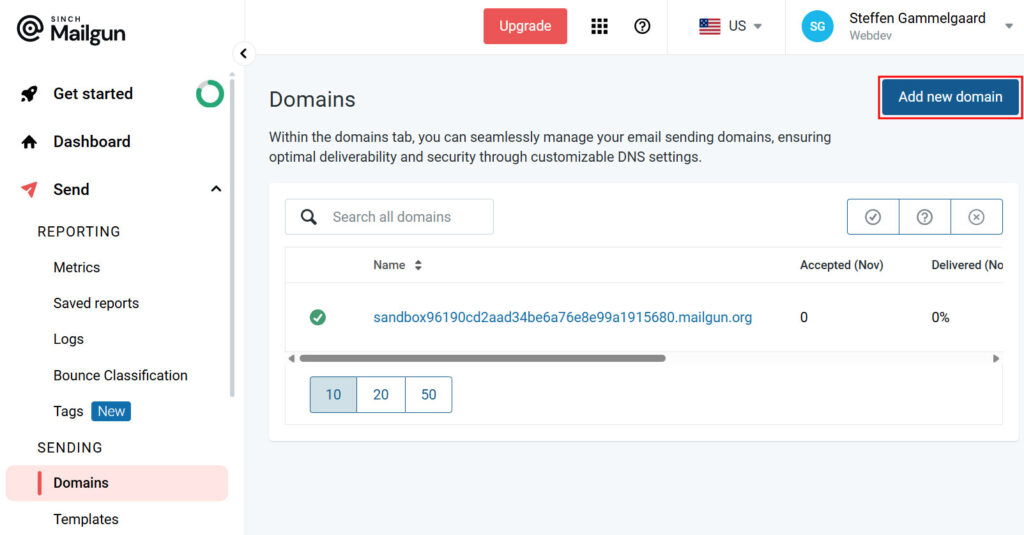
Next click “Send” then “Domains” and “Add new domain”.
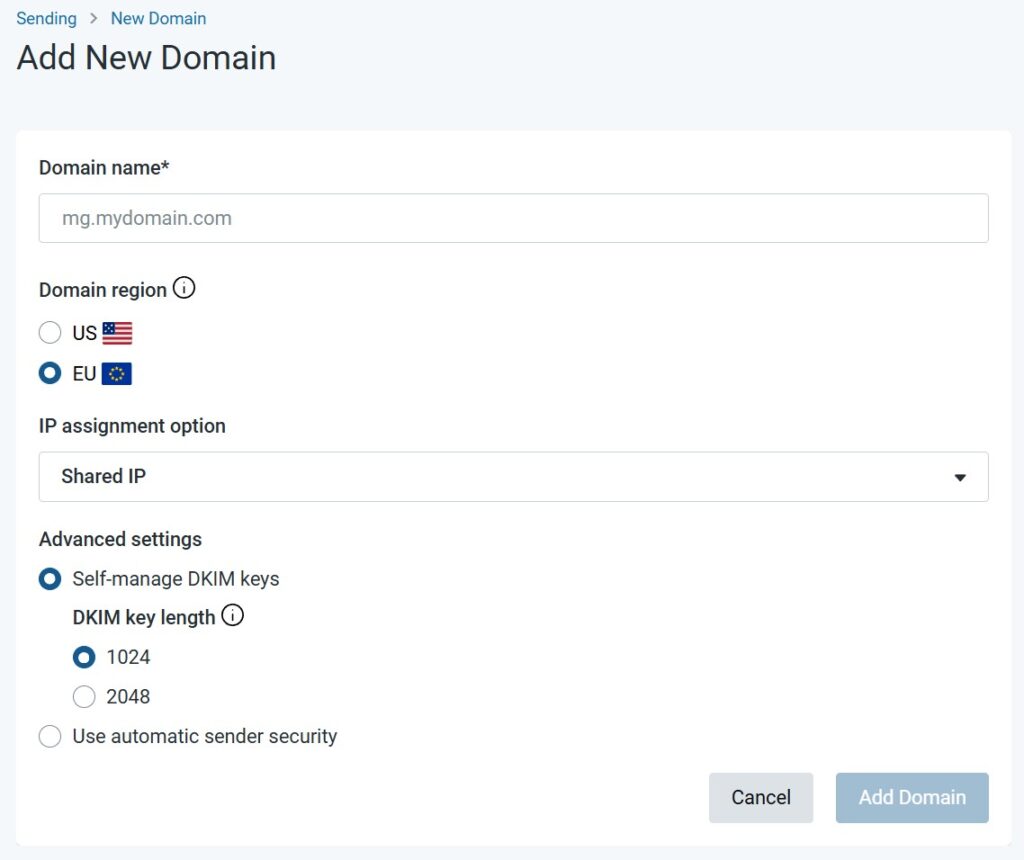
Add you details:
- Domain name: mg.yourdomain.com (It’s important to add “mg” before your domain name)
- Domain region: Select your preferred region
- DKIM length: Feel free to select either 1024 or 2048 (Bear in mind that some shared hosting providers does not allow for 2048 keys)
As you can see there are 5 DNS records, two “Sending records” two “Receiving records” and one tracking record. Go to your domain or hosting controlpanel and find your DNS settings.
Start by adding the two sending records, which are a TXT records.
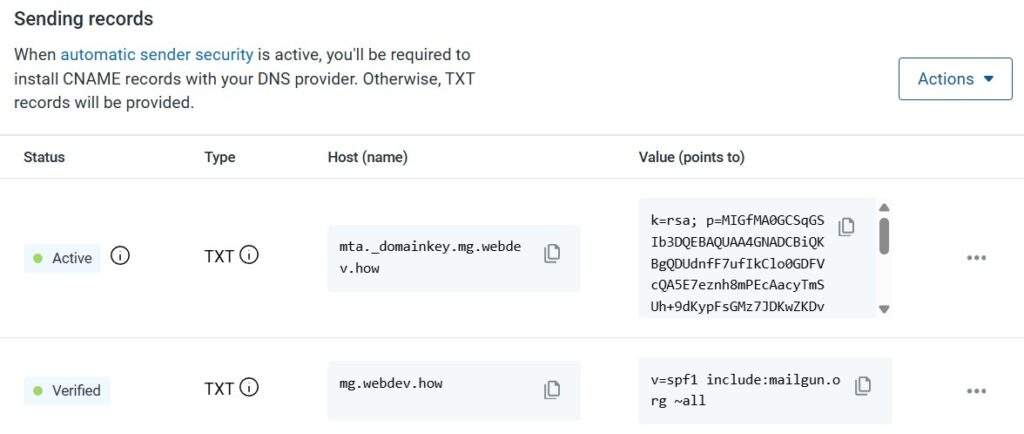
For the first sending record you need to choose:
- Type: TXT
- Name or Host: mta._domainkey.mg.yourdomain.com
- Value: Shown above
Finish adding both sending records.
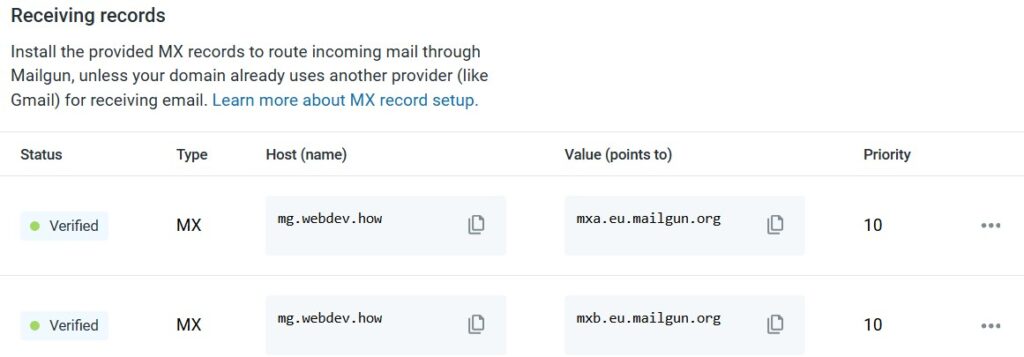
Next add the two receiving records. Be mindful that the MX records also has a “Priority” field which needs to be set to 10.
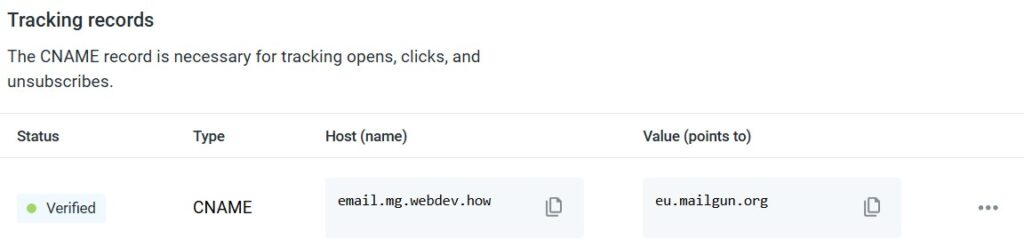
Now add the tracking record which is a CNAME record.
At the bottom of the “Domain settings” you have the option to enable DMARC as well.
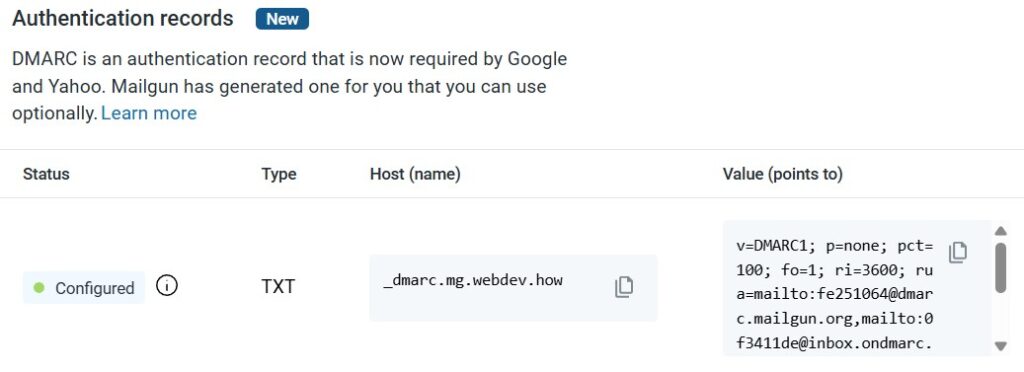
I highly recommend enabling this, so go ahead and add that extra DNS record as well.
After you’ve added all DNS records go ahead and click “Verify”. Be mindful that DNS records can take some time to register, so you might have to wait and try again later.
Create a Mailgun API key
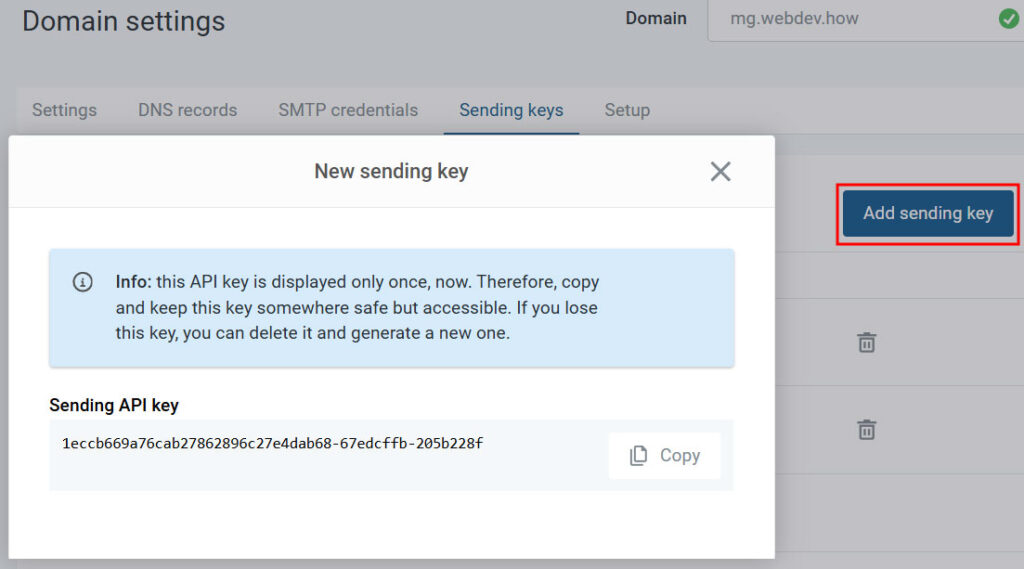
Go to your “Domain settings” and click “Sending keys” and “Add sending key”. Now copy and save the key since it will only be shown once.
Connect Mailgun to a WordPress website
To connect Mailgun to your WordPress website I recommend the plugin WP Mail SMTP which has the option to connect using your API key. Simply download the plugin and follow the instructions.
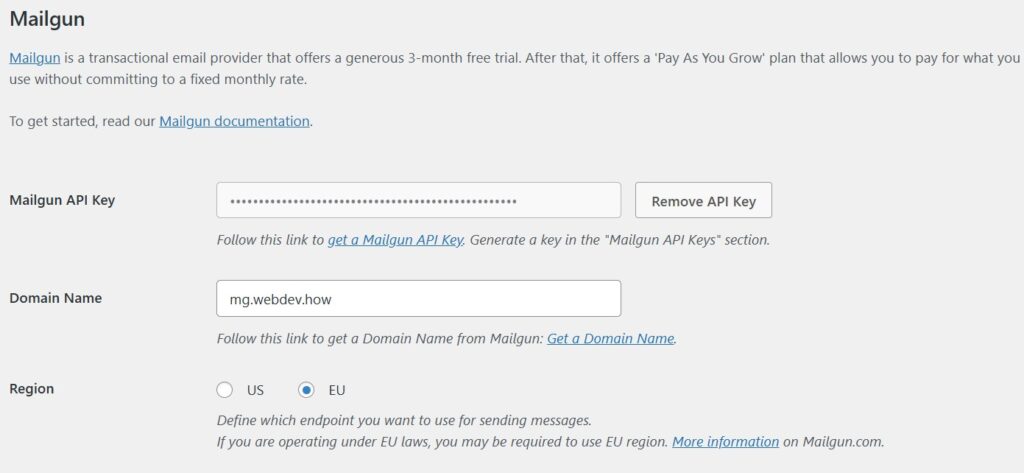
- FROM email: Use an email address that matches your sending domain
- Mailer: Choose Mailgun
- Mailgun API key: Add the key
- Domain name: Add the domain name mg.yourdomain.com
- Region: The region you chose earlier
Lastly go to “Tools” and send a test email.
Create Mailgun SMTP credentials
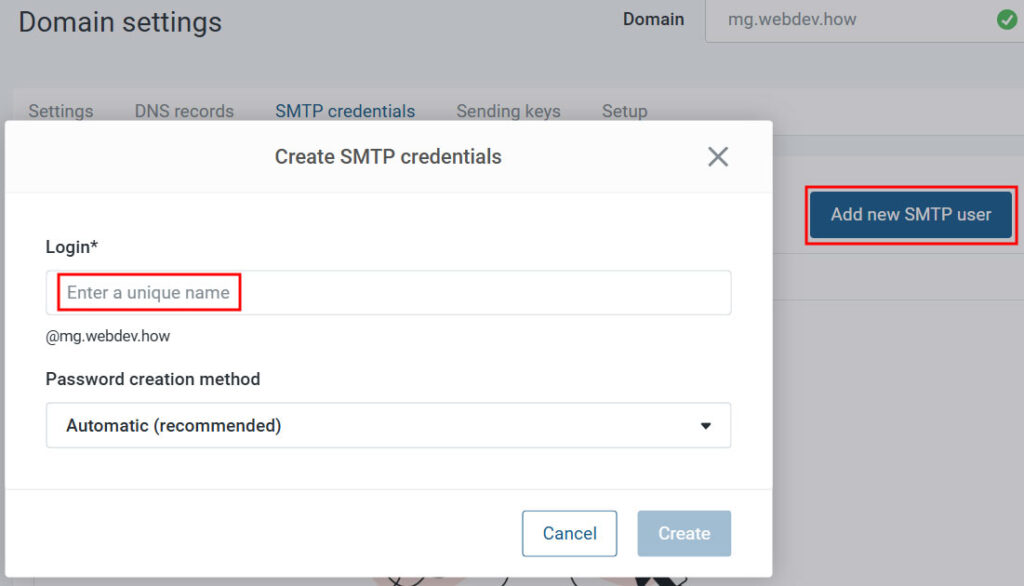
Go to your “Domain settings” and click “SMTP credentials” and “Add new SMTP user”. Add a name and login name and click “Create”. Make sure to save your login and password.
Connect Mailgun to MailPoet
To connect Mailgun to MailPoet using SMTP credentials start by installing the MailPoet WordPress plugin and going to “Settings” -> “Send with…” and choose “Other”.
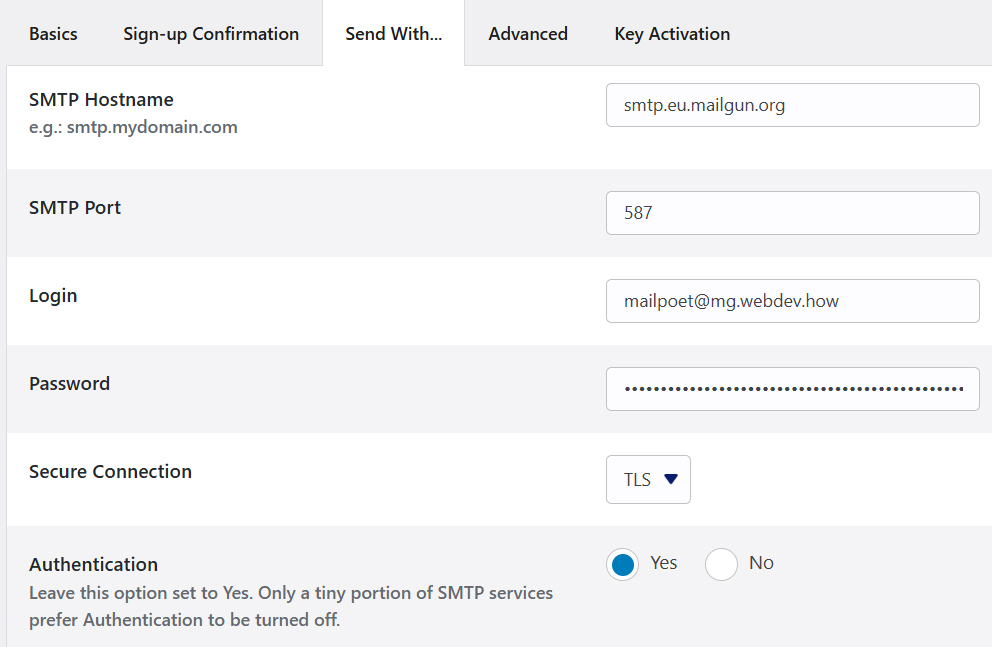
Here you can add the SMTP credentials:
- SMTP Hostname: smtp.eu.mailgun.org (Be mindful whether you are using EU or US servers)
- SMTP Port: 587
- Login: The login you just created (for example: mailpoet@mg.webdev.how)
- Password: Your password
- Secure connection: TLS
- Authentication: Yes
For the safest SMTP connection use port 465 with TLS. If port 465 isn’t working use 587 with TLS or SSL instead. Port 25 is not a safe option and should be avoided. For MailPoet these above settings are working.
Now send a test email. If you get an error message and don’t receive a test email you have to begin testing different ports. Mailgun uses the ports 25, 587, 2525, and 465. Check for more information regarding ports here.
Summary
So I hope this gives you a realistic impression of how to setup Mailgun. This is it for this video, if you have any questions feel free to write in the comments below.
Disclaimer: You can help support content creation. If you click some of my links, WP Explainer may get a compensation. I only partner with companies and products that I’d happily recommend to my audience.

Related tutorials

WP Rocket tutorial – WordPress cache plugin for speed optimization
In this tutorial you will learn to setup WP Rocket the best WordPress caching plugin for speed optimization

UptimeRobot review: Best website uptime monitoring tool
UptimeRobot is a great tool for website uptime monitoring and a must-have for any serious website developer, IT professional, online marketeer, server manager or business owner

Free WordPress Cookie Plugin – CookieYes Tutorial
In this tutorial you will learn to install and setup the FREE WordPress cookie plugin: CookieYes

Webtoffee GDPR Cookie Consent tutorial
In this tutorial you will learn to install and setup the best cookie consent plugin for WordPress: Webtoffee Cookie Consent

Polylang tutorial – Time efficient setup
In this tutorial you will learn how to quickly setup a multilanguage website using the free Polylang plugin.

The 4 step checklist for changing your WordPress website
Using these 4 steps to make changes to your WordPress website, will save valuable time.